- You have no items in your shopping cart
- Subtotal: ₹0.00
|
Getting your Trinity Audio player ready...
|
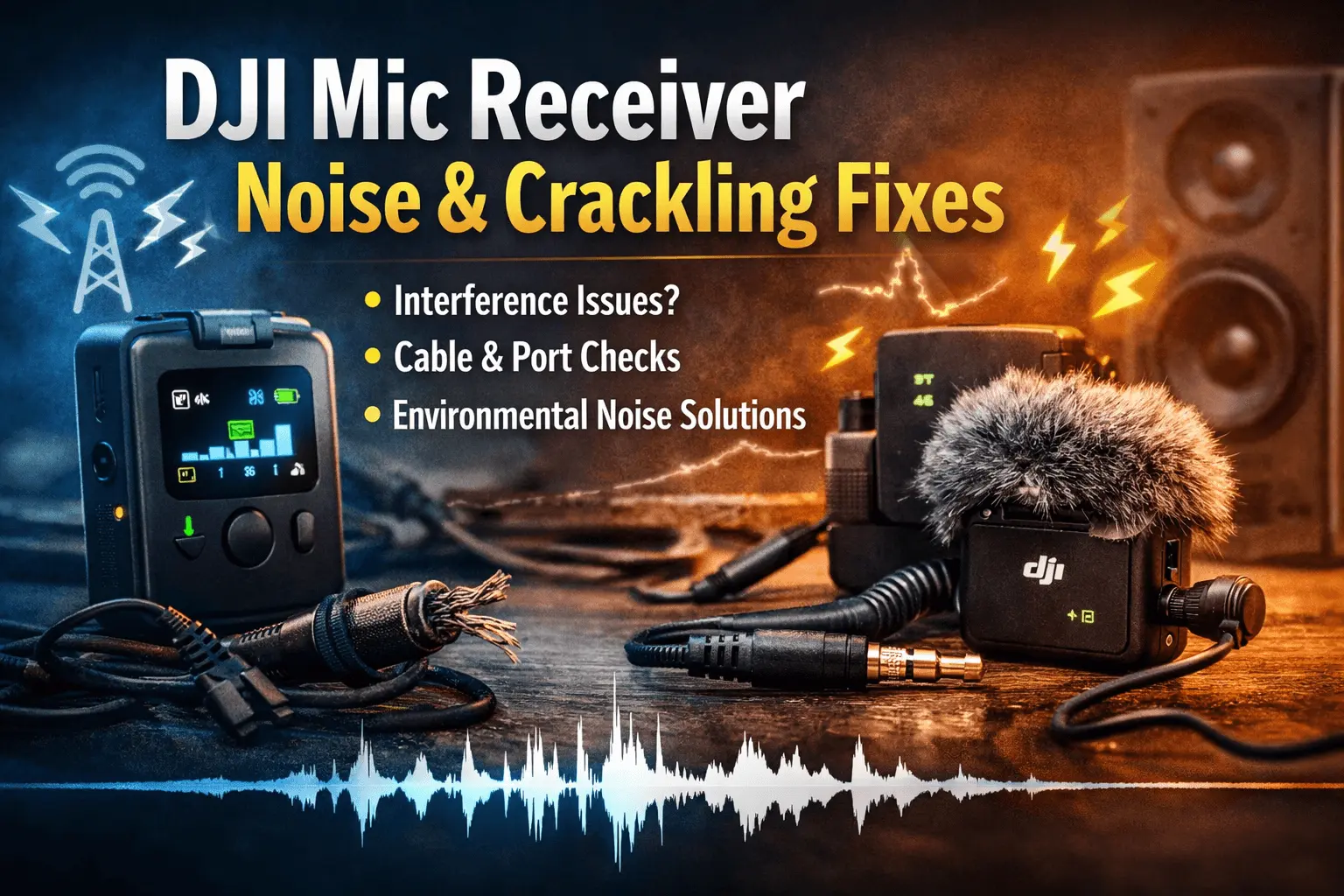
If your DJI Mic receiver suddenly starts sounding like a radio from the 90s, don’t panic. Crackling, popping, and random noise don’t mean your mic is dying. Most of the time, the issue comes from interference, bad placement, or simple connection mistakes.
In this 2026-ready guide, we’ll break everything down clearly without tech drama, fake fixes, or overcomplicated jargon.
Let’s make your audio clean again.
Why DJI Mic Receivers Start Crackling
Before fixing anything, you need to know what causes the noise. In real-world usage, crackling usually comes from three areas:
- Wireless interference
- Connection or cable issues
- Environmental noise sources
DJI Mic systems use 2.4 GHz wireless transmission the same space used by Wi-Fi, Bluetooth, smart TVs, and even your smartwatch. When too many devices fight for the same space, audio suffers first.
Identifying Crackling Caused by Interference or Placement
Let’s start with the most common culprit: interference + bad mic positioning.
1. Check Your Distance First (Yes, It Matters)
DJI Mic performs best when the transmitter and receiver stay within a clear line of sight.
Real-world problems:
- You put the receiver on your camera.
- You hide the transmitter under a thick jacket.
- You move behind a wall.
- Suddenly… crackle city.
Fix:
- Keep direct visibility between transmitter and receiver.
- Avoid thick clothing, backpacks, or metal objects between them.
- Stay within DJI’s recommended operating range.
Fact check: DJI confirms that obstacles and body blocking can reduce wireless stability (DJI Support Documentation).
2. Watch Out for Wireless Crowds
Your mic may sound perfect at home but terrible at events. That’s not coincidence.
High-interference locations:
- Trade shows
- Wedding halls
- Shopping malls
- Airports
- Concert venues
All of them run heavy Wi-Fi traffic.
What you can do:
- Turn off unused Bluetooth devices.
- Move away from routers when recording.
- Keep phones in airplane mode if possible.
- Re-pair the DJI Mic system before recording.
Small steps. Big audio difference.
3. Avoid Placing the Receiver Near These
Some placements look convenient but ruin sound quality.
Never mount your DJI Mic receiver:
- Right next to a wireless video transmitter
- On top of a power bank
- Near a camera HDMI port with loose cables
- Close to LED light power units
These devices generate electromagnetic noise that creeps into your audio signal.
4. Inspect the Output Cable (Not Just Look at It)
If you use a cable between the receiver and your camera or phone, check it properly.
Signs of a bad cable:
- Crackling when you move the cable
- Noise only when recording to camera
- Clean sound in headphones, bad in footage
Fix:
- Use the original DJI cable when possible.
- Replace old TRS/TRRS cables every 6–12 months.
- Avoid ultra-cheap third-party cables.
Trusted audio brands like Rode and Shure confirm that poor shielding causes signal noise in lavalier setups.
5. Clean the Ports (Yes, Really)
Dust and pocket lint love audio ports.
If your receiver or camera port looks clean, it may still hide debris inside.
Safe cleaning steps:
- Use a soft air blower.
- Never use sharp objects.
- Avoid liquid cleaners.
A dirty port can create unstable contact, which leads to you guessed it crackling.
6. Check Gain Levels Before Blaming the Mic
Sometimes the mic works fine. The gain doesn’t.
If your input gain is too high:
- Small electrical noise becomes loud crackling.
- Breathing sounds like thunder.
- Silence sounds like static.
Best practice:
- Keep DJI Mic gain at a moderate level.
- Control loudness from your camera or recording device.
- Use test recordings before final shoots.
Environmental Sources of Noise and How to Minimize Them
Now let’s talk about the invisible enemy your surroundings.
Electronic Noise Is Real
Modern rooms look quiet but sound noisy to microphones.
Common electronic noise sources:
- Air conditioners
- Refrigerators
- LED panel lights
- Laptop chargers
- Power strips
Your ears ignore them. Your mic doesn’t.
Fix:
- Record away from power sources.
- Switch off unnecessary electronics.
- Use battery-powered lights when possible.
Wind and Fabric Friction
Not all crackling comes from electronics. Sometimes, it comes from air and clothes.
You’ll notice this when:
- Shooting outdoors
- Walking while recording
- Wearing jackets or scarves
Fix:
- Always use the windscreen.
- Clip the mic away from fabric movement.
- Avoid placing the transmitter in loose pockets.
Simple placement fixes prevent hours of editing later.
Ground Loop Issues (For Advanced Users)
If you record while charging your camera or phone, you may create a ground loop.
This causes:
- Low buzzing
- Static noise
- Intermittent crackling
Fix:
- Avoid charging while recording.
- Use isolated power sources.
- Record on battery whenever possible.
Audio engineers from Sound Devices and Zoom regularly recommend this practice for clean signal paths.
Quick Troubleshooting Checklist (Save This)
Before you panic, run through this list:
- Re-pair transmitter and receiver
- Move to a low-interference area
- Replace the cable
- Clean all ports
- Lower gain levels
- Turn off nearby electronics
- Reposition the mic
- Test on another device
If the crackling disappears after one step, congratulations you just saved yourself a service center visit.
When to Suspect Hardware Issues
Sometimes, the mic really has a problem. It’s rare, but it happens.
Signs of real hardware trouble:
- Noise appears on every device
- Crackling stays even after cable changes
- Both wireless and internal recording sound bad
- The issue starts after water exposure or impact
In these cases, contact DJI Support instead of trying risky DIY repairs.
2026 Best Practices for Clean DJI Mic Audio
As content creation grows in 2026, audio quality matters more than ever. Algorithms forgive shaky video. They don’t forgive bad sound.
Here’s what smart creators now follow:
- Always carry backup cables
- Keep fresh batteries
- Test audio before hitting record
- Use on-board backup recording if available
- Monitor sound with headphones
Clean audio builds trust faster than any camera upgrade.
Final Thoughts
DJI Mic receiver noise feels scary at first. But in most cases, the fix stays simple:
- Better placement
- Cleaner connections
- Smarter environments
No magic tricks. No fake hacks. Just solid audio basics that professionals use every day.
And remember if your mic ever crackles during an important shoot, don’t blame the mic immediately.
Blame the environment first. The mic usually wins that argument.
Video on DJI Mic Receiver
Trusted Sources & References
- DJI Official Support Documentation – Wireless mic interference and usage guidelines
- Shure Audio Knowledge Base – Cable shielding and noise management
- Rode Microphones Learning Hub – Gain staging and lavalier best practices
- Sound Devices Audio Guides – Ground loop and electronic noise control
These sources reflect industry-standard audio practices used by broadcasters, filmmakers, and content creators worldwide.